

Imagine this: you’re ready to print that masterpiece you just created on your iPhone, but instead of the satisfying whirr of the printer, you hear crickets. Frustrating, right? Fear not! Adding AirPrint to your iPhone is easier than finding a Wi-Fi signal in a coffee shop.
Understanding AirPrint Technology
AirPrint is a wireless printing technology developed by Apple. It allows iPhone users to print documents, photos, and web pages directly from their devices without the need for additional software or drivers. This capability simplifies the printing process significantly.
Compatible printers feature built-in AirPrint support, making them easy to identify. Users can often find a list of compatible models on the Apple website. Additionally, printers connected to the same Wi-Fi network as an iPhone can be used for printing, providing flexibility and convenience.
AirPrint automatically detects printers on the network. When the user selects a file or image to print, the iPhone displays available printers. This functionality streamlines the printing process, saving time and effort.
No setup is required to start using AirPrint once a compatible printer is identified. Users simply choose the print option from their desired app and select the printer. Specific features may include options for printing in color or black and white, adjusting paper sizes, or two-sided printing when supported by the printer.
Security protocols ensure that data remains protected during transmission. Encryption safeguards personal and sensitive information, maintaining a secure printing environment. Such security measures highlight the reliability of AirPrint technology.
Multi-device compatibility also enhances usability. Users can print not only from iPhones but also from iPads and Macs, making it easier for family members to share a printer. AirPrint ultimately offers a seamless and efficient printing solution for Apple device owners.
Requirements For Adding AirPrint
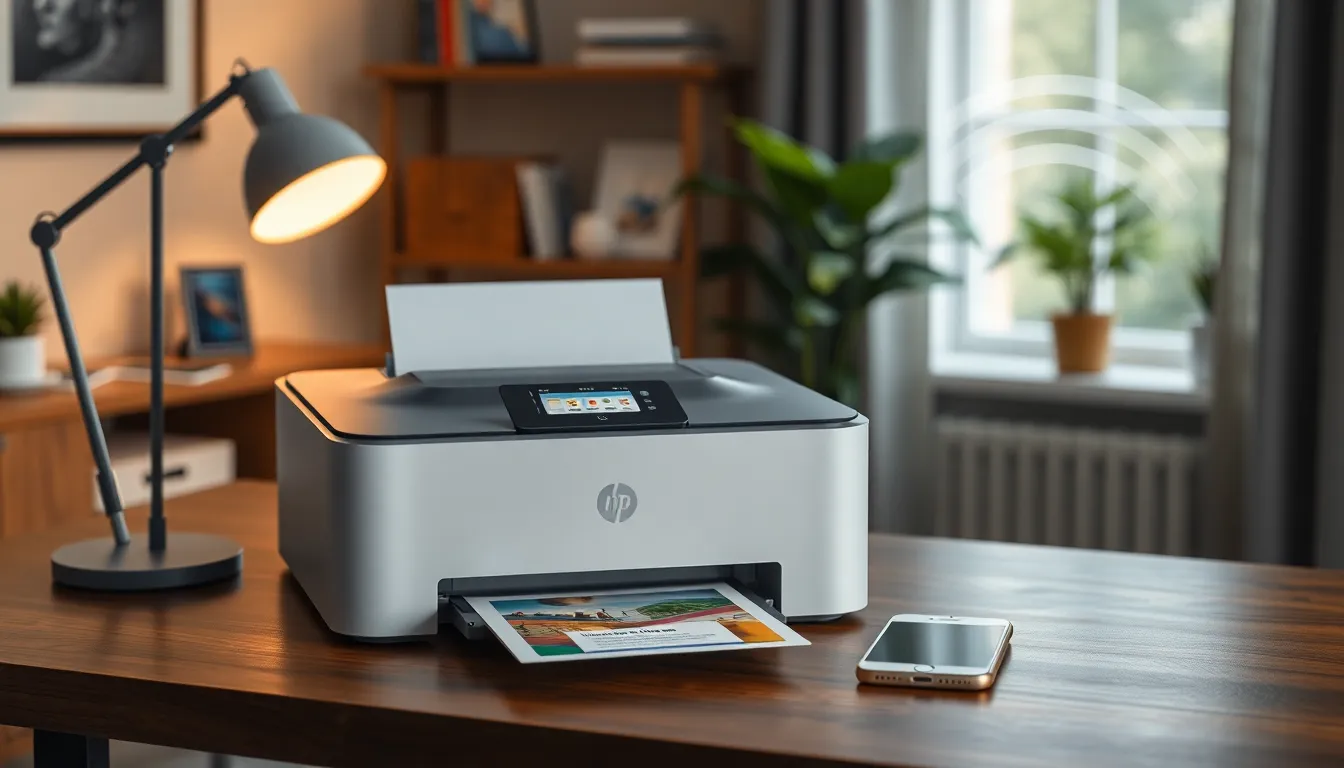
Adding AirPrint requires specific components to function effectively. These components include compatible printers and proper network connectivity.
Compatible Printers
AirPrint works exclusively with printers that support built-in AirPrint technology. Users can easily identify these printers through notable brands like Canon, HP, and Epson, which commonly feature this functionality. Checking manufacturers’ websites ensures users select the right model. Many current printers on the market include AirPrint compatibility, bringing convenience to printing tasks. Verifying AirPrint support before purchase simplifies the process, allowing straightforward printing from iPhones.
Network Connectivity
A stable Wi-Fi network plays a crucial role in the AirPrint process. Each device, including the iPhone and the AirPrint-enabled printer, must connect to the same Wi-Fi network. Ensure that the network settings are correctly configured and that both devices remain within range of the Wi-Fi router for optimal performance. Network issues often lead to connection problems; therefore, testing the Wi-Fi signal strength can help prevent interruptions. Additionally, maintaining updated firmware on both the printer and the router can enhance overall connectivity.
Step-By-Step Guide On How To Add AirPrint To iPhone
Adding AirPrint to an iPhone involves a few straightforward steps. Follow these instructions to enable seamless printing from your device.
Configuring Your Printer
Ensure the printer supports AirPrint. Look for built-in AirPrint technology, often found in brands like Canon, HP, and Epson. Connect the printer to the same Wi-Fi network as your iPhone. Verify that it’s powered on and ready for use. Check for any firmware updates that may enhance performance or compatibility. Many printers offer configuration options through a dedicated app, which can simplify the setup process.
Adding AirPrint To Your iPhone
Open the app from which you want to print, such as Photos or Safari. Tap the share icon or the print option within the app. Locate the printer selection and choose your AirPrint-enabled printer. Specify the number of copies and adjust any necessary print settings. Finally, tap Print to start the job. Your iPhone seamlessly communicates with the printer, delivering high-quality prints without additional software.
Troubleshooting Common Issues
Sometimes users experience issues while trying to print from their iPhones. Identifying and resolving common problems ensures a smooth printing experience.
Printer Not Detected
When the printer doesn’t appear, check its compatibility with AirPrint. Ensure it’s connected to the same Wi-Fi network as the iPhone. Restarting both devices often resolves simple detection issues. If the printer remains undetected, verify that AirPrint is enabled in the printer settings. Updating the printer’s firmware may also fix the problem. Users should consult the printer’s manual for specific instructions on enabling AirPrint. Finally, moving closer to the printer can improve connectivity.
Connection Problems
Connection problems frequently stem from Wi-Fi network instability. Confirm that both the iPhone and printer remain on the same network. Users can check Wi-Fi settings on their iPhone in the settings app. Restarting the router might resolve connectivity issues. Sometimes, disabling and re-enabling Wi-Fi on the iPhone refreshes the network connection. Additionally, interference from other devices can affect performance. Reducing the distance between the printer and router may enhance the signal.
Adding AirPrint to an iPhone transforms the way users print from their devices. With just a few simple steps and a compatible printer, printing becomes a hassle-free experience. The seamless integration of AirPrint technology ensures that users can print documents and photos effortlessly without the need for additional software.
By following the guidelines and troubleshooting tips outlined, users can enjoy a reliable printing solution that enhances productivity and convenience. Embracing AirPrint not only simplifies printing but also supports a more connected and efficient home or office environment.


